Quickstart
This page takes about fifteen minutes. By the end of it you will have a Stalwart account and a bot for a small restaurant that answers customers about the menu, takes their orders and books their tables. You will have chatted with it, and it will be running on your own computer. You need no key, no code and no terminal: the only thing you type outside your browser is one line you copy at the end.
Where a step needs the console, a picture of that console page follows, with the part that matters circled.
Language support
The selector reads turns written in English and in Brazilian Portuguese (pt-BR). The language is chosen, never guessed from the turn: the console's Settings page (Language the selector reads), language on a plan request, or the settings.language of your vocabulary file; with none of them, English. A Portuguese turn may be typed with its accents or without them. European Portuguese is not a grammar the selector has, and a turn in any other language is unread.
Sign up
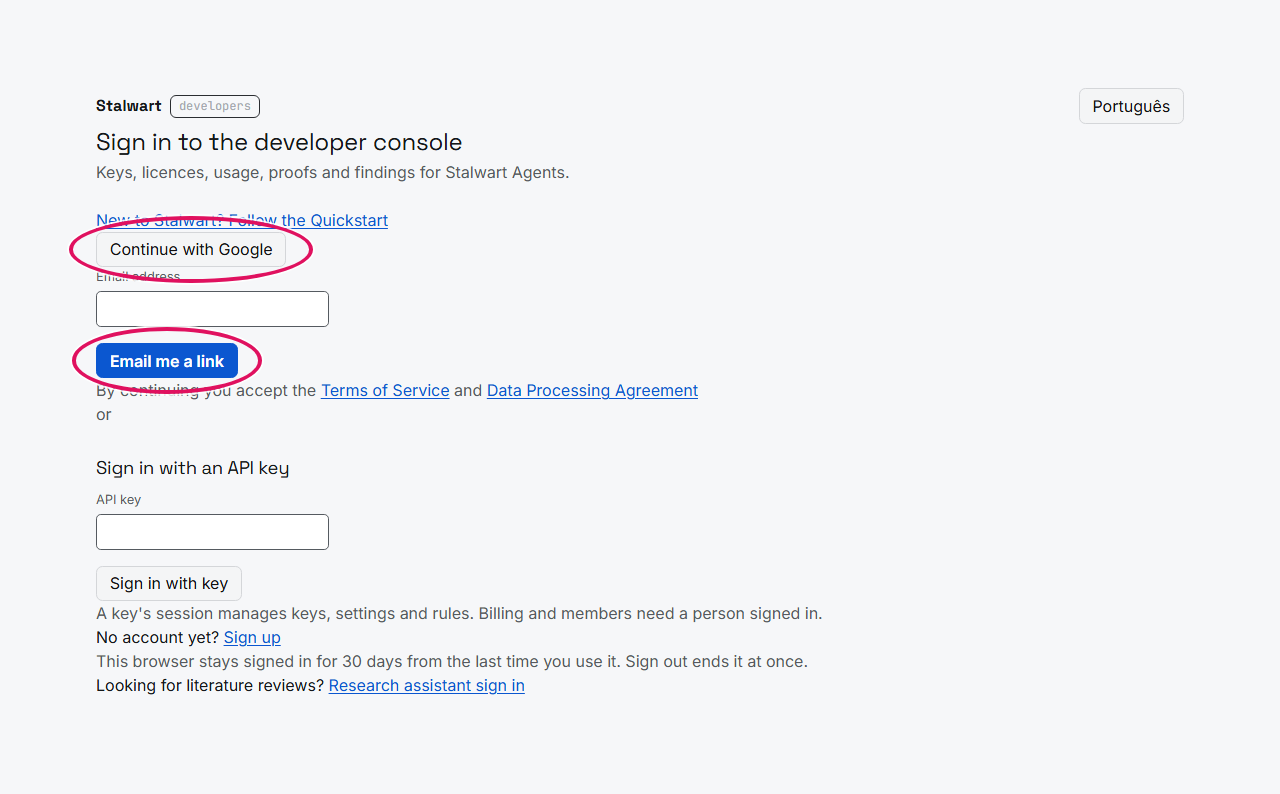
Register your interest on stalwart.it; once we write back, sign in to the console with your Google account or with a link we email you. Continuing accepts the terms and the data processing addendum, which the page links to.
Your bots
The first time you sign in, your organisation is made for you, on the free plan, named after your email address; you can rename it on Account. The developer console opens on its Overview; your bots are under Build: open Your bots. Each of your bots will be a card here; for now there is none, so press Start from a template:
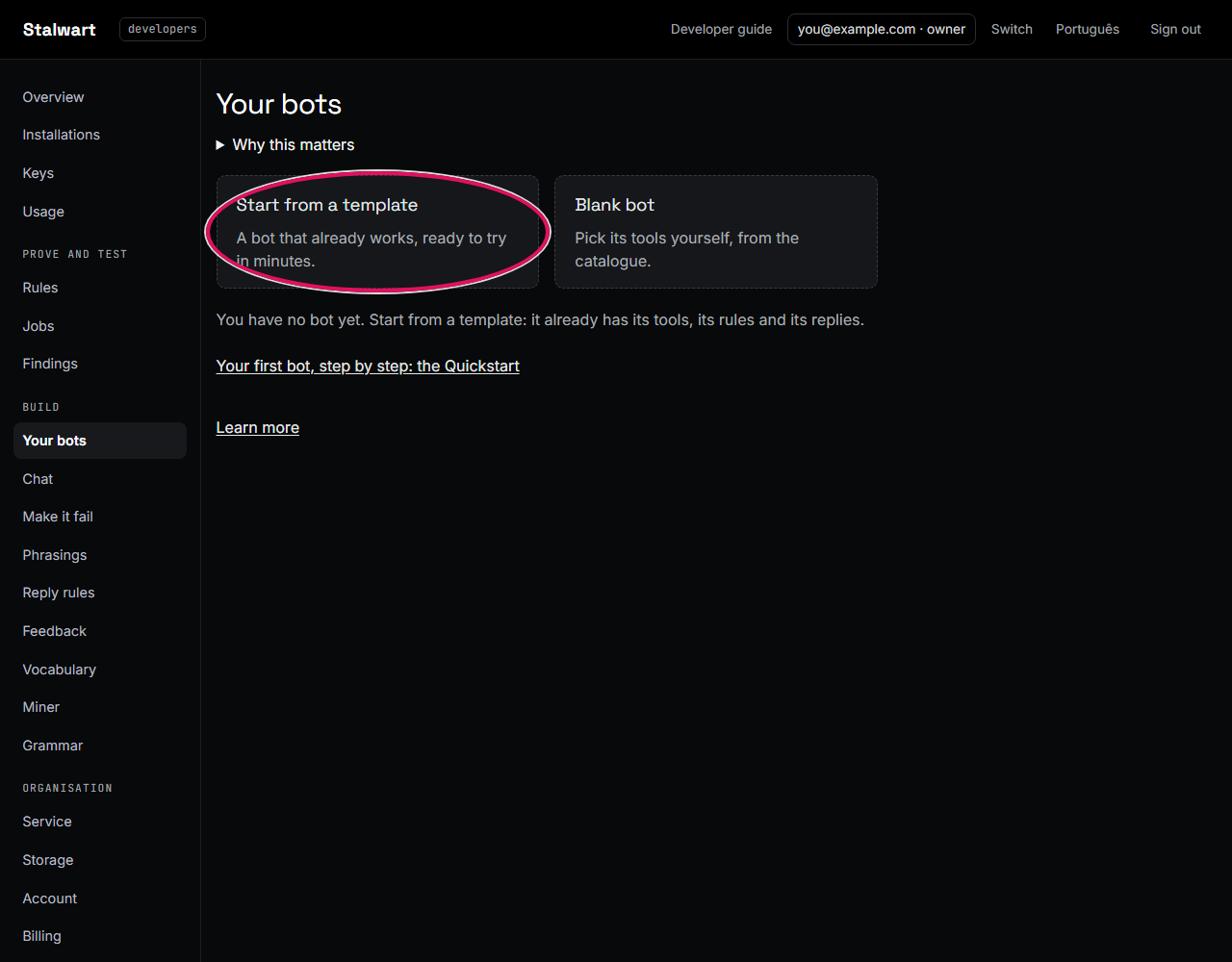
Start from a template
A template is a bot that already works: it comes with its tools, its rules and its replies. Pick Restaurants and takeaways and press Start from this template:
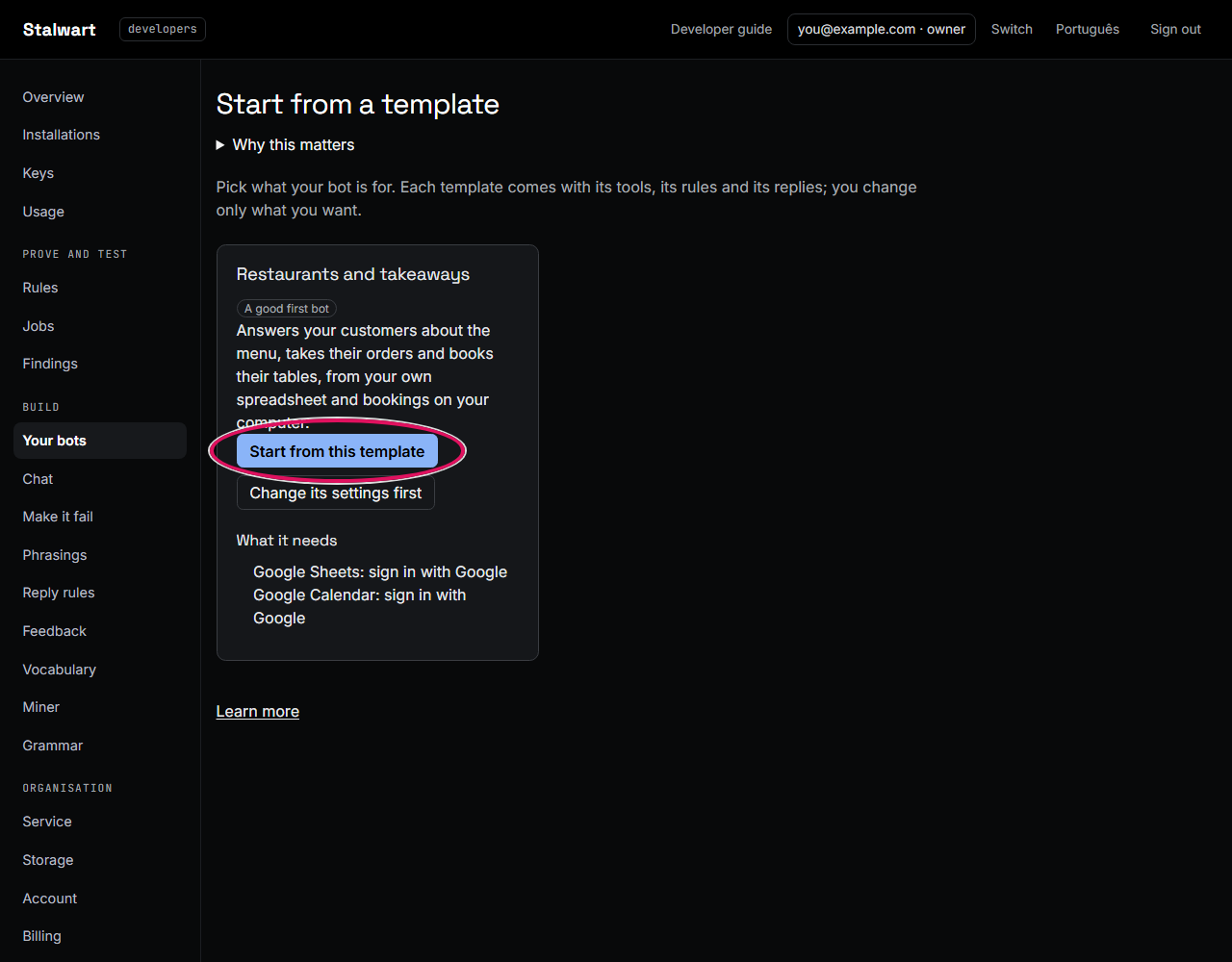
That is all: your bot is made, with every tool the template comes with, and it opens. Its rules are already set: on the free plan, it asks you before it writes anything, an order, a booking or a change to the menu. It uses no AI model: a message it cannot read gets a polite I can't help with that, with how to reach you. At the top of its page are the two things to do now: run it on your computer, and chat with it.
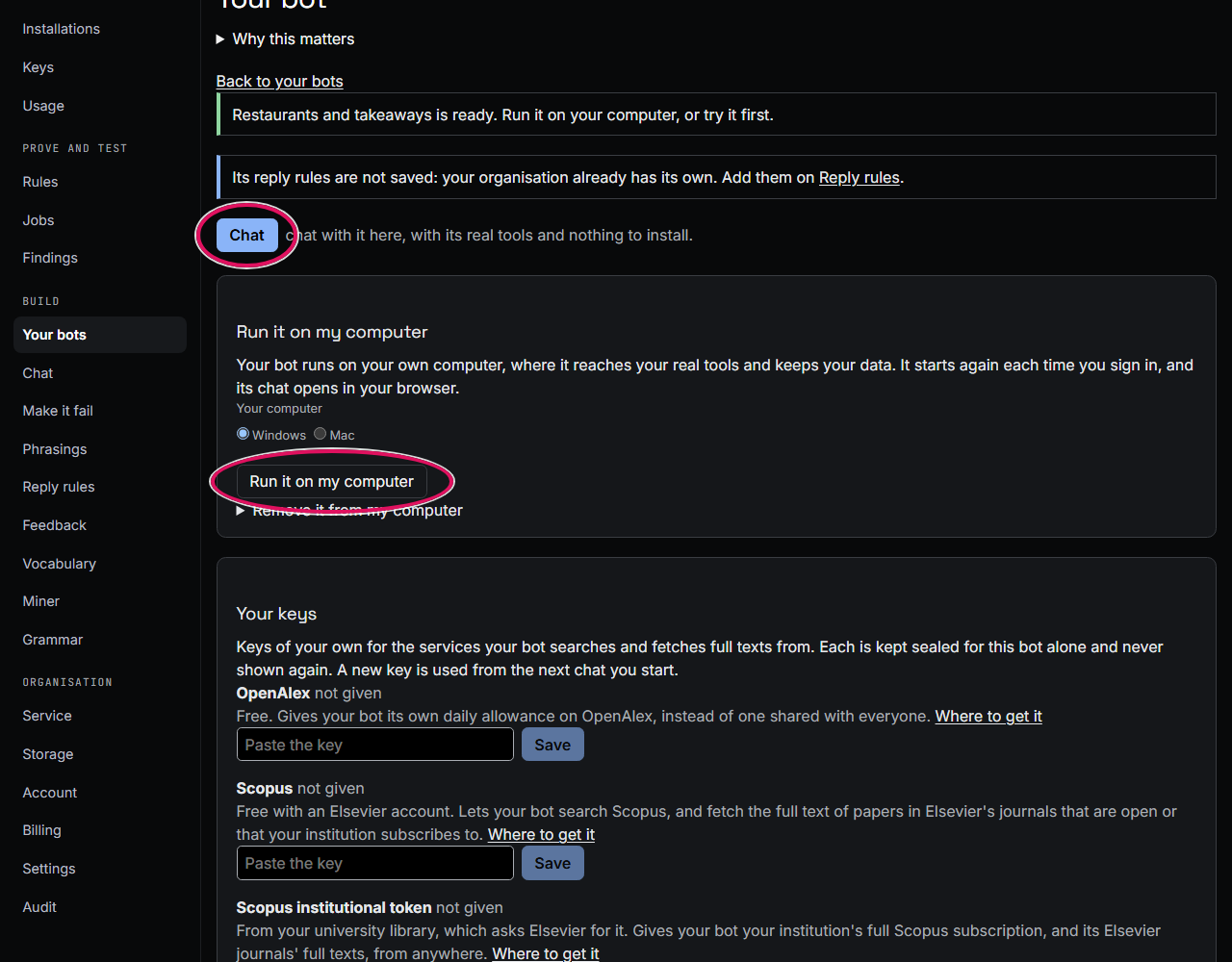
Below them are its settings, to change whenever you like: its name, the language your customers write in, how to reach you (your bot gives it to anyone it cannot help), a greeting and your logo. Under When your bot doesn't understand you can let an AI model answer what it cannot read, on your own key from your AI provider, which you add on your computer once your bot runs there: Stalwart never sees it. A person's details reach a model only on the Enterprise plan. To set the template's own settings before the bot is made, press Change its settings first instead.
Chat with it
On Chat, you chat with your bot here, with its real tools and nothing to install. Press Start chatting and ask it something, such as what's on the menu? or 2 margherita pizzas for Rui, collection at 7pm. When it would change something, such as taking that order, it asks you first. Your conversations are kept with the bot, on the right, to read again or delete. To chat on sample answers instead, with nothing real read or written, tick Practice with sample answers before you start.
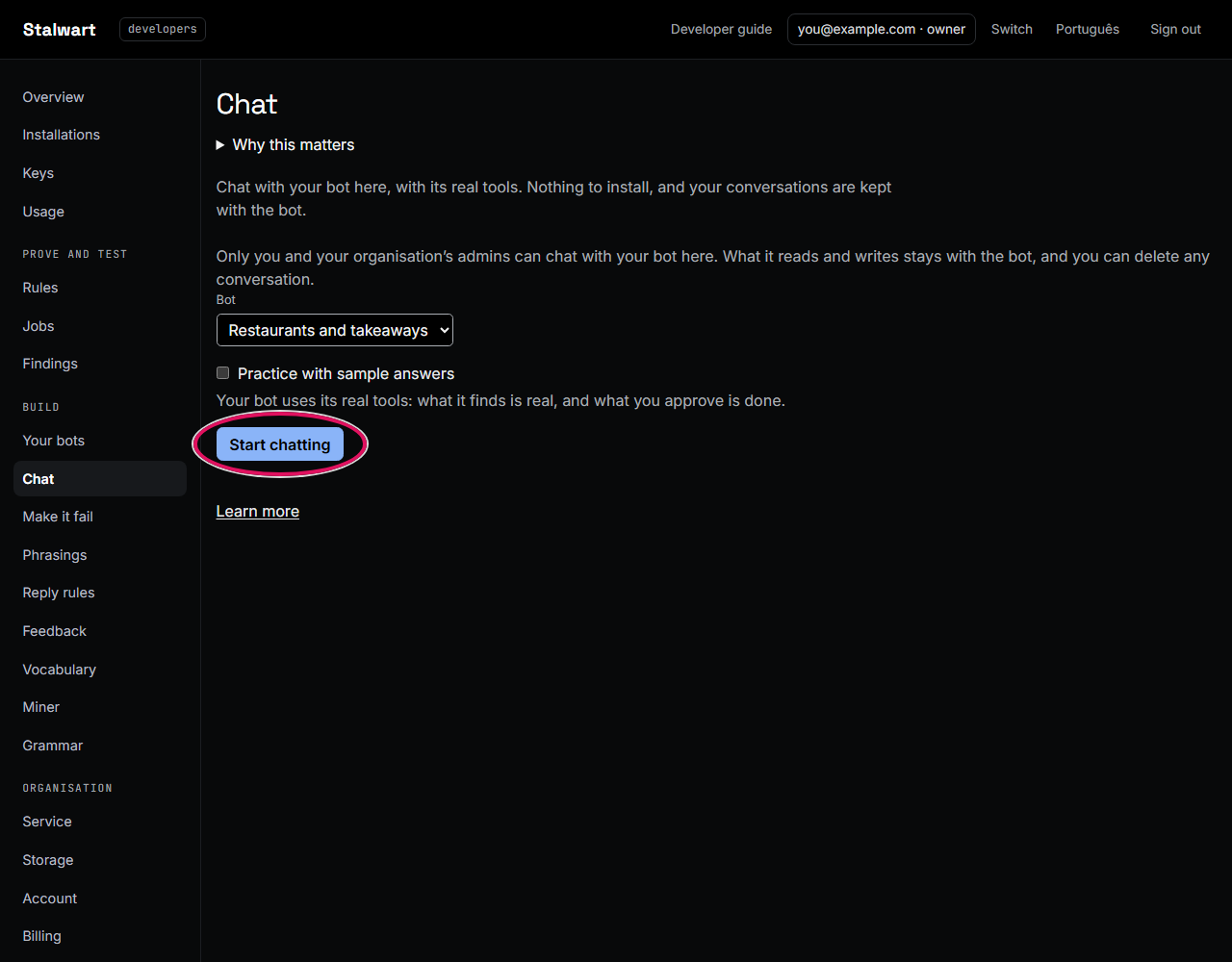
Under Chat as, you start as You, the owner; choose One of your customers to see what they see. Your customers can ask about the menu, order and book; what is for you and your staff, such as changing the menu, they never reach: the bot says no, with how to reach you.
Run it on your computer
Do this on the computer your bot will run on. Here is how it goes on Windows; a Mac is the same, with Terminal in place of PowerShell.
-
Open your bot from Your bots. Under Your computer, choose Windows, and press Run it on my computer. The console shows the line to paste:
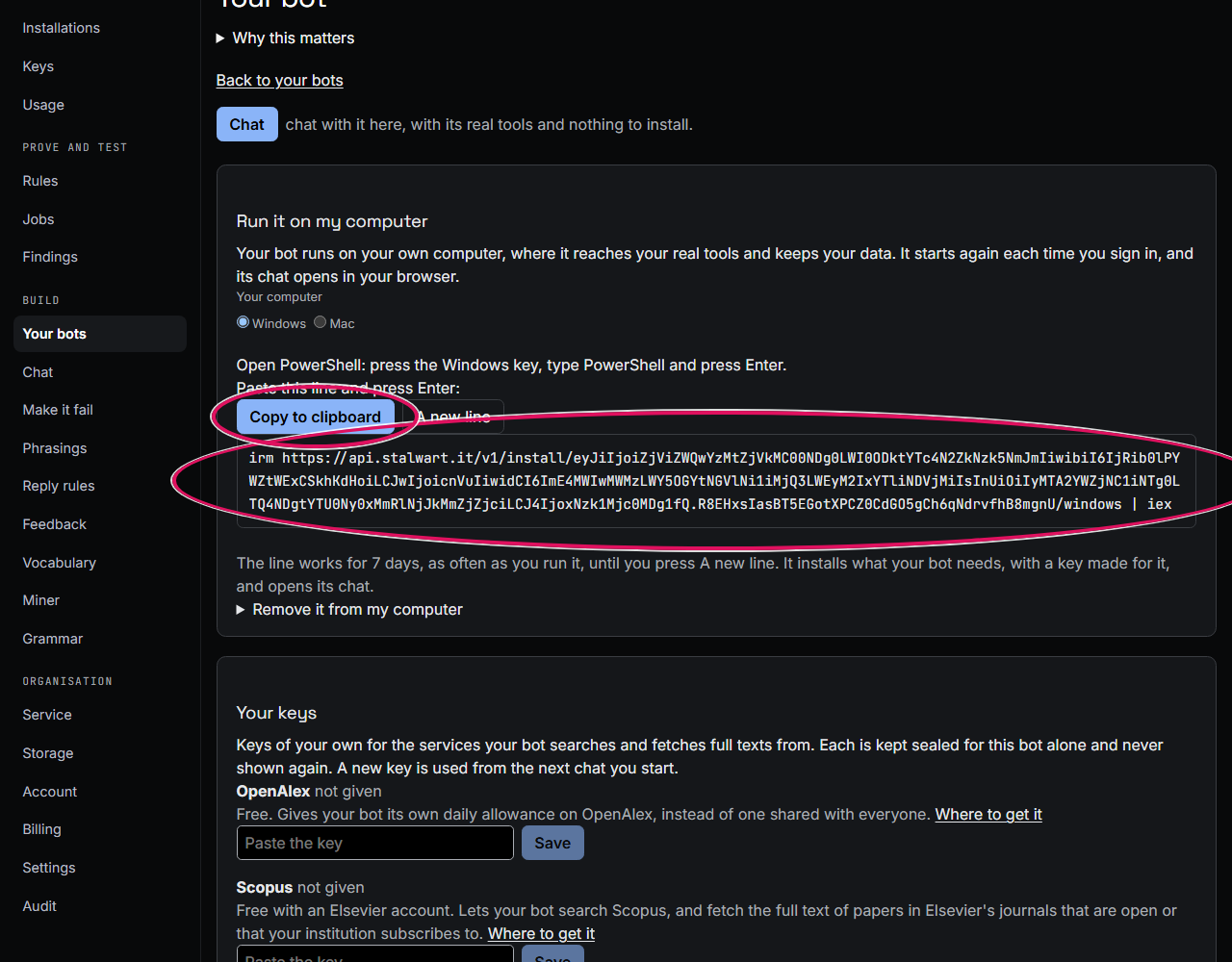
-
Press Copy to clipboard. The button says Copied to the clipboard: the line is copied, as if you had selected it and pressed Ctrl and C.
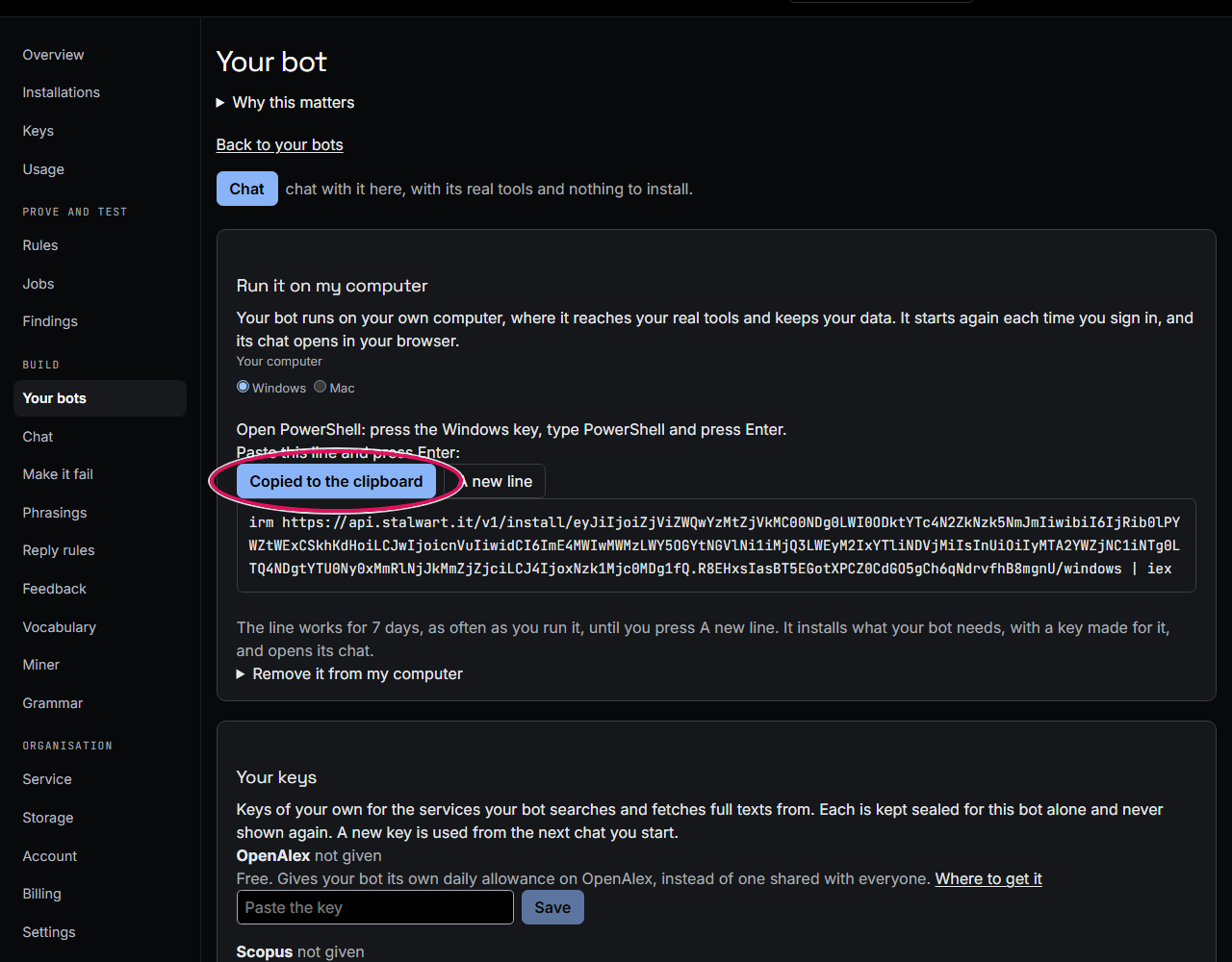
If your browser does not let the page copy, the console selects the line for you instead and says so: press Ctrl and C to copy it.
-
Open PowerShell: press the Windows key, type PowerShell, and press Enter. A window opens with a line that starts
PS C:\Users\and your name. -
Paste the line: press Ctrl and V, or right-click in the window. The whole line appears after the
PS, ending in| iex: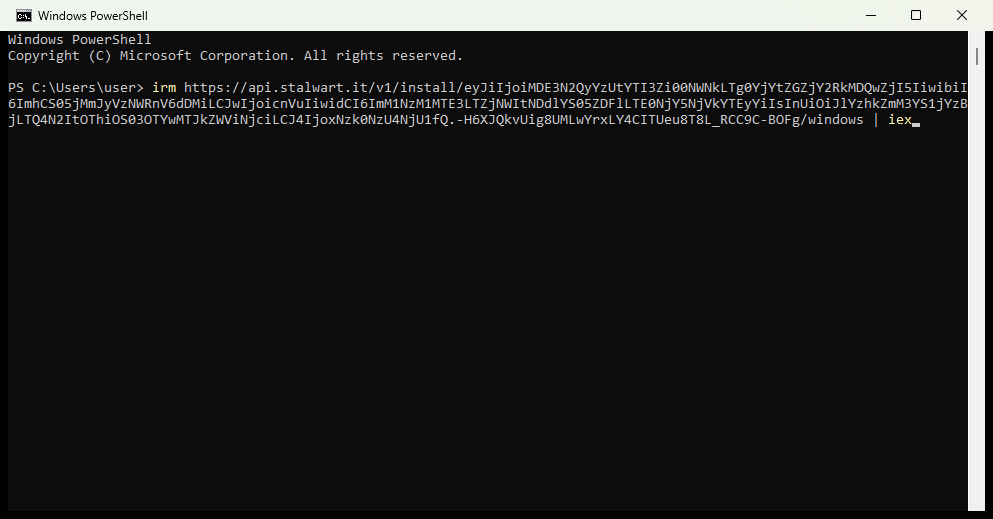
-
Press Enter. PowerShell says Setting up your bot. This takes a minute or two., and shows a bar while it downloads what your bot reads with. When it is done it says Your bot ... is running. Its chat: with an address, and Its files: with your bot's folder, and the chat opens in your browser. You can close the PowerShell window then: your bot keeps running.
If something goes wrong, PowerShell says so in a line that starts with Stalwart:, such as a computer with no internet; fix that and paste the same line again.
The line works for seven days, as often as you run it, until you press A new line, which stops the old one working. It installs what your bot needs, with a key made for it that you never see, starts the bot, and opens its chat in your browser. The bot starts again each time you sign in to your computer, and follows what you save in the console: a new version reaches it within a quarter of an hour, and one that takes something away waits until you press Use the new version in its chat.
Your bot keeps its files in a folder of its own, in Documents, Stalwart, under its name: the menu
and the orders in Menu.csv and Orders.csv, which open in Excel or Numbers, and the bookings in
bookings.csv. Change a price or mark a dish sold out in the file, or ask the bot to do it for you.
Your bot's chat
The chat shows your bot's name, its greeting and your logo. Under What I can do, it lists what the person may ask for, grouped by task: each tool's name in bold, what it does, and an example to try. Anyone who writes help gets the same list. Your customers see their tools; you and your staff see yours.
On your computer, the chat also shows you:
- Your files: what your bot saved in its folder, newest first, each to open or download. When a reply saves a file, the reply links it.
- Your bot needs your AI key, where your bot asks first or lets an AI model answer: paste the key your AI provider gave you. It is kept on this computer only, and your bot starts again with it.
- Use it on your phone: press Show the code, and scan it with your phone's camera, on the same Wi-Fi as your computer. Your phone warns that the connection is not private, because your bot made its own certificate; check that the fingerprint starts as the page here says, then go on. Your phone is then signed in as you. Windows may ask whether to let your bot use the network: allow it on private networks.
Where next
- To learn what each part of your bot does, read the User Guide.
- To build a bot in code, check it, and use the other products, follow the Developer quickstart.